
How to create an accessibility statement
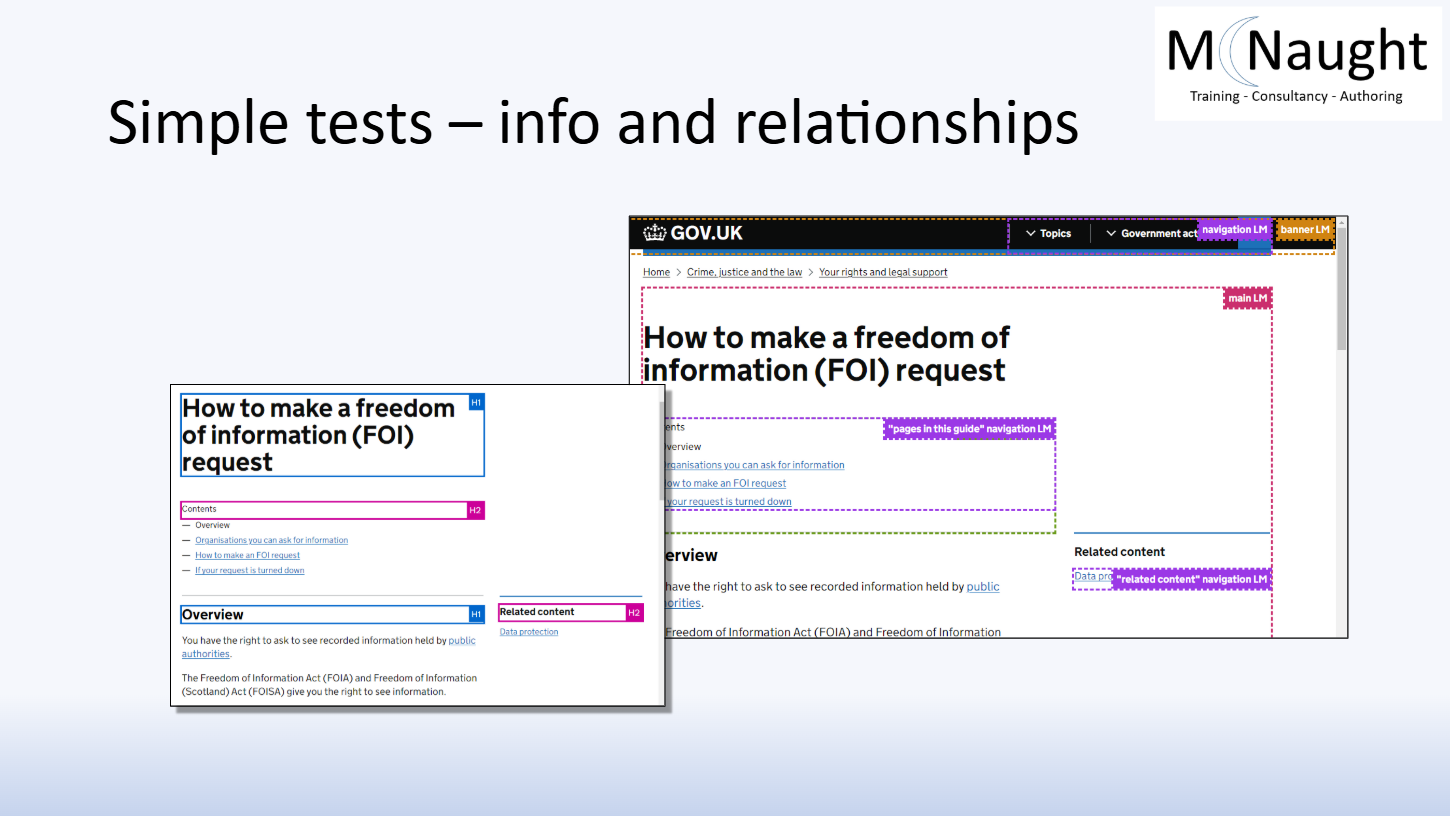
Part 1: Legal framework, practical tests and strategic approaches
This session explains how and why we do accessibility testing.
Key topics:
- The difference between the Equality Act (Disability) and PSBAR (Accessibility).
- Navigating government audits and managing your findings.
- How to perform keyboard, magnification, media and navigation tests.
Resources:
- Slides (part 1) (Google Slides)
- Additional Resources (part 1) (Google Doc)
Part 2: Communicating with stakeholders
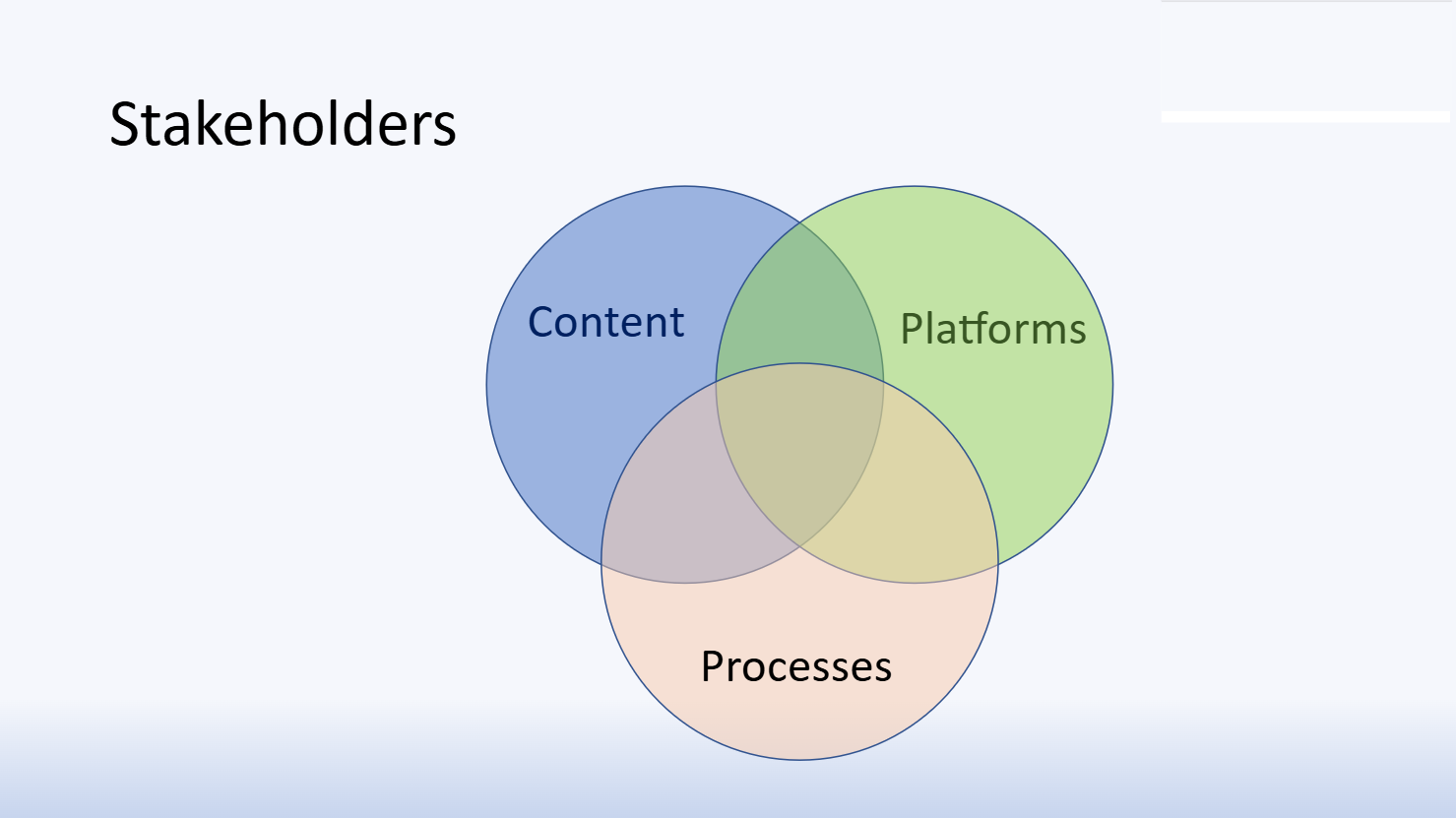
This session focuses on the who and what when drafting the statement.
Key topics:
- Identifying key stakeholders in the accessibility process.
- Moving from ‘technically compliant’ to useful.
- Reviewing best-practice examples.
Resources:
- Slides (part 2) (Google Slides)
Next steps: drafting your statement
Once you have completed the training and assessed your system, use the resources below to draft and publish your statement.
If you need an accessibility statement because you are planning a new system, you need to follow University processes first.
- Speak to the Enterprise Architecture team.
The team will help ensure new systems and services work well with the University’s existing technology, data and processes. - Read the Procuring accessible systems guide.
If procuring a system, you must ensure it meets all accessibility requirements, as well as having an accessibility statement. Find out what you need to do if you're involved in a procurement process and who can help.
Use the template
Download the template to ensure you include all legally required sections:
- Accessibility statement template (Google Doc)
Review examples
See examples of published accessibility statements for University services.
- University website accessibility statement
- MyUoY app accessibility statement
- YorSearch accessibility statement
- Jobs portal accessibility statement
- Canvas LMS accessibility statement
- Planon accessibility statement
Publish the statement
When complete, this statement should be added to a suitable location for users. For example:
- The system's login screen
- A web page about the system, eg within the list of Tools, software and services. To request a new web page about the system, use the web request form (select ‘an IT service reference entry’).
Support
For ongoing support, you can consult with other system owners on the #accessibility-statements Slack channel (email digacc-support@york.ac.uk for access).
You can also contact the Digital Accessibility Support team directly (digacc-support@york.ac.uk).