
Laptop Loans
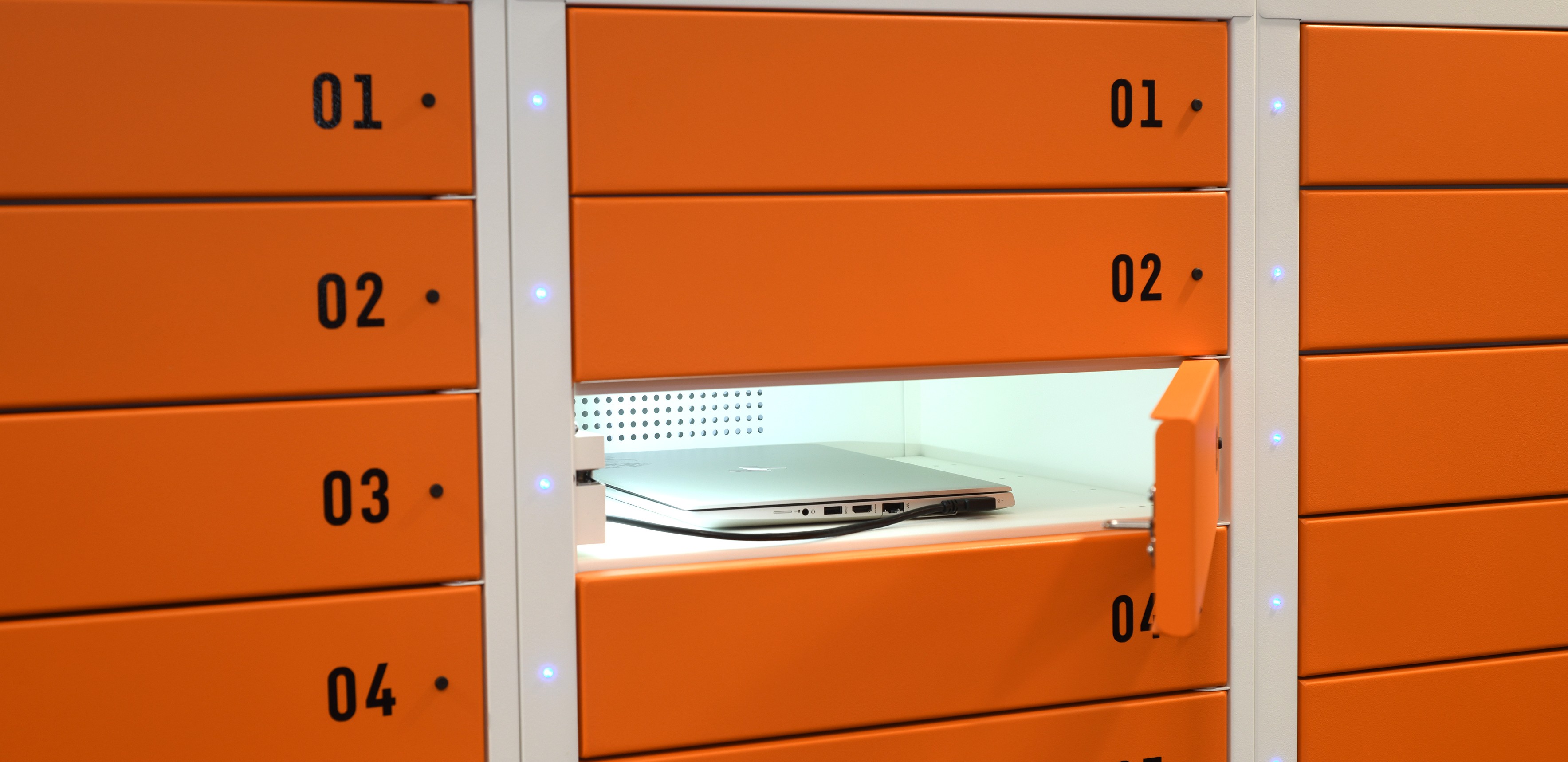
Laptop loan cabinets
The laptop loan cabinets are located in the Piazza building on Campus East, and in the Fairhurst building (on the first floor, outside Yorcreate) on Campus West. There are 32 laptops in the Piazza cabinets and 80 available in the Fairhurst cabinets.
Laptops issue for 4 hours at a time. The service is free and open to all students at the University.
Before you can borrow a laptop you will need to set up a 4-digit PIN (personal identification number) in YorSearch. You'll only need to do this once. You should be able to follow the link below (signing in when prompted) and select "CHANGE YOUR PIN CODE" to set your PIN:
YorSearch Personal details and settings
You can find more detailed instructions on setting your PIN in the FAQs further down this page.
To borrow a laptop you'll also need your University card (either your physical card or your digital one on the MyUoY App). Just tap on the screen on the laptop cabinets and follow the instructions (again we've more detailed instructions in the FAQ below).
80Laptops available at Campus West
32Laptops available at Campus East
4hours is how long laptops can be borrowed for at a time
Things to know about the Laptop Loans service:
Where are the laptop loan cabinets?
The laptop loan cabinets are located in the Piazza building, second floor study area, and in the Fairhurst building, on the first floor outside YorCreate.
How do I generate the PIN to borrow a laptop?
You will only need to generate the 4-digit PIN once. Whenever you borrow a laptop you will need to use this PIN. You can change your PIN from your YorSearch account at any time.
At the moment it is not possible to generate your PIN from the MyUoY app. You will need to go to your Personal details and settings in YorSearch and choose the "CHANGE YOUR PIN CODE" option. That link should take you to the right page (via a sign-in), but if not, we've also provided some navigation instructions below.
Generating a PIN in the desktop version of YorSearch:
- Go to YorSearch;
- Log in via the Login link in the top right, using your University username (for example, abc123) and password;
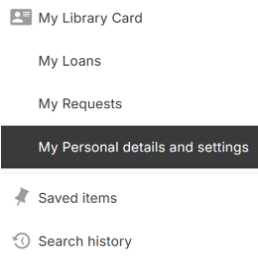
- Once logged in, select the menu with your name on it, top right, and choose "My Personal details and settings":
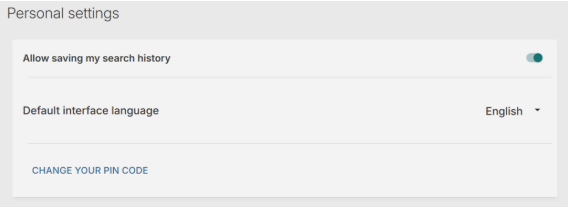
- In the "Personal Settings" section, choose the option "CHANGE YOUR PIN CODE":
- Selecting "CHANGE YOUR PIN CODE" will open a pop up, allowing you to choose and enter your own 4-digit code. Try to choose a number memorable to you, but don't worry - you can change it any time if you forget it!
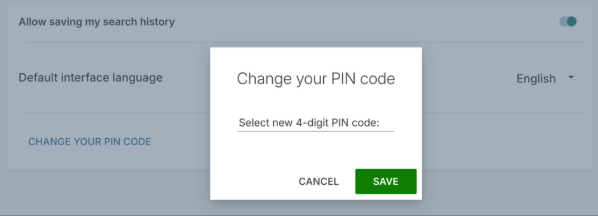
- Once you've entered your 4-digit PIN, hit the save button (and remember to log back out of your YorSearch account if you're on a public or shared computer). Your PIN is now saved and ready to use when borrowing a laptop.
Generating a PIN in the mobile version of YorSearch:
- Go to YorSearch;
- Log in via the Login option under the three dots menu, top-right, using your University username (for example, abc123) and password;
- Once logged in, select the three dots menu again and choose "MY LIBRARY CARD";
- Scroll across the top menu tabs and select the tab called "PERSONAL DETAILS AND SETTINGS";
- Scroll down to the "Personal Settings" section and choose the option "CHANGE YOUR PIN CODE";
- Selecting "CHANGE YOUR PIN CODE" will open a pop up, allowing you to choose and enter your own 4-digit code. Try to choose a number memorable to you, but don't worry - you can change it any time if you forget it!
- Once you've entered your 4-digit PIN, hit the save button. Your PIN is now saved and ready to use when borrowing a laptop.
How do I borrow a laptop?
- Go to the laptop loan cabinet and touch the touchscreen to begin. You'll be prompted to scan the barcode on your university card at the point just below the screen - this scans best when the card is about 10 cm away from the scanning point. If using your digital library card on the MyUoY App, also make sure to expand the barcode before scanning.
- You'll then be asked to enter your 4 digit PIN on the touchscreen.This will open the borrowing screen, where you select the laptop option.
- This opens up a screen which tells you which laptop locker your loan is in and directs you to remove the laptop, and gives the time you need to return the laptop.
- The individual locker door will open and you can retrieve the laptop. As before, the laptop will be issued to you for a 4 hour loan.
- Make sure you have securely closed the locker door once you have collected the laptop.
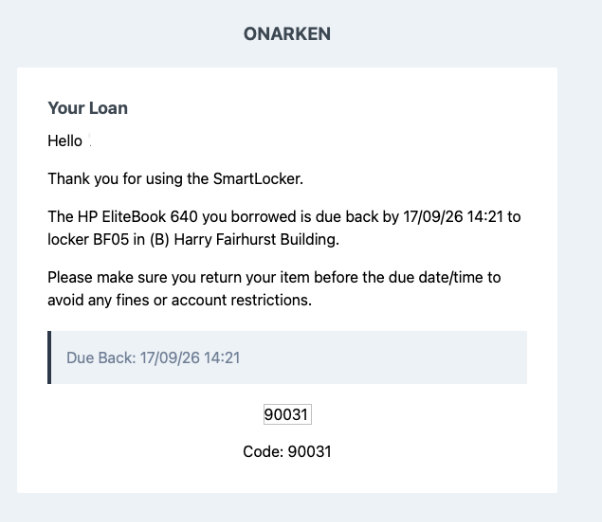
You will get an email from the laptop management system to your university account acknowledging the loan and reminding you when the laptop is due back.
Below is an example email from the laptop management system “Onarken”, showing you the kind of email you'll get when you borrow a laptop:
How do I return a laptop?
- Go back to the cabinet you borrowed the laptop from and touch the touchscreen to begin. As before, you'll need to scan the barcode of your university card and then enter your 4 digit PIN.
- This will open a screen offering the option to return the laptop. Select the return option and the returns screen will open, directing you to the locker in which to return the laptop.
- This individual locker door will open and you can return the laptop to it.
- Make sure you plug in the laptop and close the door securely for the return to register. This is important - if you do not plug in the laptop and close the locker door, the loan may not register and the laptop could remain issued to your account.
I've had an email that my laptop return didn't work - what do I do?
It's important to ensure you have plugged in the laptop and properly closed the door for the return to register. If you don't do this, the laptop will not be automatically returned from your account. You may get an automated email from the laptop management system warning you that the cabinet hasn't registered the laptop being plugged in, like the message below:
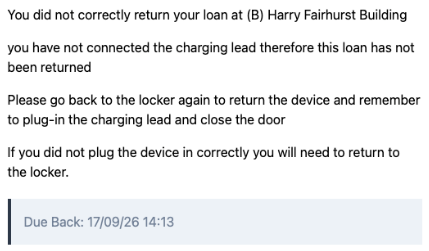
This will direct you to return to the cabinet - you will need to sign in again and then ensure that the laptop is plugged in and the locker door is properly closed. If you have problems returning the laptop, please contact the library helpdesk.
There are no loan laptops left - where else can I access a computer on campus?
We have computing facilities available throughout the library buildings and across both campuses. The computing facilities in the library are a mix of bookable and non-bookable spaces - you can select the option for a desktop PC when booking a study space. This IT webpage gives a full list of all computing facilities available - including those in the library buildings.
Help! Something's gone wrong! What should I do?
Don't panic! If you are struggling to return a laptop or having problems with the cabinet, please contact the library helpdesk. Help desk staff can take a laptop from you if there is an issue returning it directly to the cabinet and can troubleshoot cabinet problems. If you're having any problems with your IT account or have other queries about computing at the university, please contact IT support.
If you need a device for longer
To ensure everyone has equal access, the 4-hour laptop loans are non-renewable and we are unable to extend the duration of loans. When you return the laptop, if there is another one available, the cabinet will allow you to borrow another device for a further 4 hours.
However, we understand that there may be cases where you need access to a computer for longer periods of time. There are many computer labs and spaces across the University, including in the Library that may be suitable for your study. If you specifically need a laptop, please talk to us at the Library Helpdesk, and we will be happy to discuss options with you in line with your needs.