
Staff essentials
-

- Staff home
- Staff essentials
- Staff supporting students
- Student Check-In
- Personal Supervisors Guide
Personal Supervisor Guide: Check-In
For September 2025, there are new aspects of the Check-In system. This is a guide for Personal Supervisors and how these aspects impact you.
SITS integration
From September 2024, the following data from SITs was integrated into the Check In system.
This data will enable users to utilise this information to assist with decision making regarding academic engagement, wellbeing and support.
- Disability flag indicating Yes/No
- SSP data (assessment linked) indicating Yes/No
- Absence - Self-cert date range: Each date period start/finish of approved self-certified absence for a student.
- Year group/mode of study (Number format: 1, 2, 3, 4 etc.)
- Full name of current assigned supervisor(s)
- Student Primary Department: A single home department for each student
- International/Home student
- College
- Campus Resident indicating Yes/No
- Main single Student Status
- Student course route: PG, UG
- UKVI (showing as Yes or No)
- Student phone number
- Full Time Abroad Study (FTOA) and any other FTO* statuses
- VLE Login data (last date and time the student logged in)
- Supervisee List
This will give Personal Supervisors the ability to see their student supervisees, with
additional data in the Check-In system.
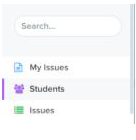
On the left of your screen on Check-In you will see options similar to the image on the left. To access the list, click on the ‘Students’ tab (highlighted in grey) and you will then be presented with a list of your current student supervisees. Your caseload will appear similar to the image below.
Some students/departments are still out of scope for Check-In, eg International Pathway College and HYMS.

You will now be able to see the Block data percentages throughout the academic year. The data will start to appear as the academic year progresses. Note: a student will only appear on a block if their engagement is 49% or below for that teaching block.
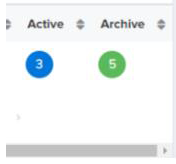
Scrolling to the right, there are ‘Active’ and ‘Archive’ columns with a number underneath. These will also update throughout the academic year and the number symbolises how many times a year the student has appeared on the blocks.
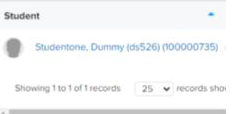
To find out more information about the student and their
academic progress, click on their name highlighted in blue.
You will then be presented with four tabs named:
- Information
- Issues
- Attendance
- Engagement
Information tab
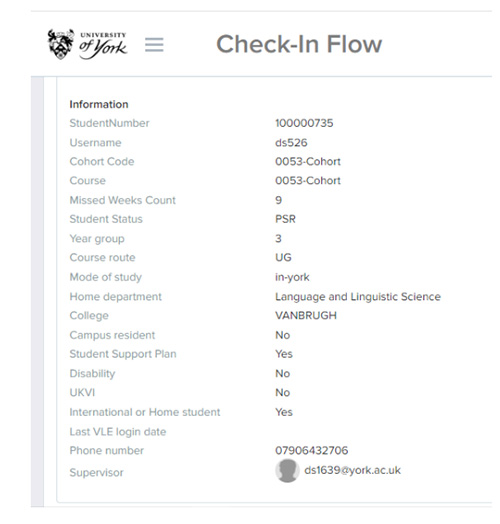
The page will load directly to the ‘Information’ page and this is where you will be able to see the majority of the data referred to in the SITs integration above.
Issues tab
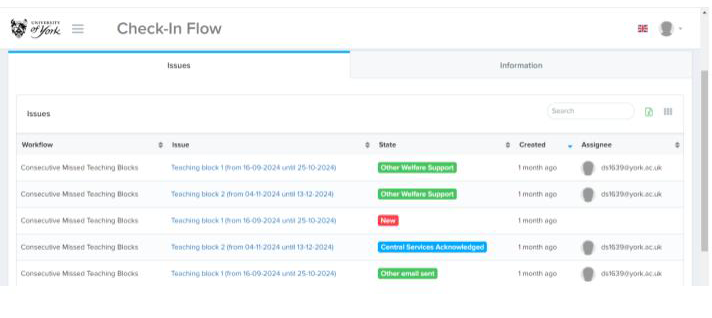 This tab will show if a student appeared on a block and how the system has identified the student.
You can see which block of the academic year the student has been identified, including the date, status, the date the ‘case’ was created and the email address of who the case is allocated to.
- New - the student has appeared as new on the block, meaning that they have been
identified as not meeting the engagement criteria - Repeater - the student is appearing on the block for a second consecutive time on a block in an academic year
- Email sent/Other email sent - the professional services staff within the department have sent the student an email following their being identified on the block. The email is engaging and support-focused.
- Other welfare support - the department is managing the students' wellbeing
- Flag for Central Services/ Central Services Acknowledged - the department has referred the student to Central Services (usually Student Life and Wellbeing) for a wellbeing intervention.
The outcome and any relevant information following the intervention will be returned to the department as feedback.
Professional Services Staff in your department will send emails to students through the system or change their status.
Other information
Early Identification - You will see here if a student has received an earlier identification email. These are ‘nudges’ early in each semester, which direct the student to support.
Engagement tab
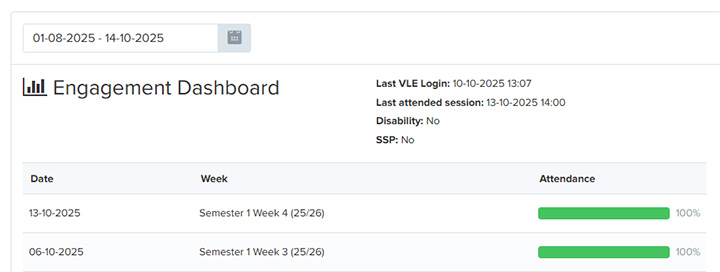
This tab brings in Supervision data to Check In. The tab is split into two and shows weekly engagement in teaching sessions on the left-hand side and Supervision data on the right.
Engagement shows the weekly percentage of teaching sessions attended by students, including the week commencing date and the week within the Semester.
Supervision shows the type of meeting that has taken place, with a status underneath eg attended. Data will also show the email of the person who held the meeting, including the date, time the meeting took place and the Semester.
 This data is reliant on the data that is input into e:vision.
Attendance tab
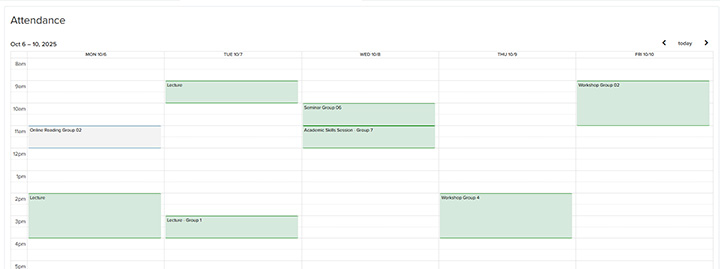
This tab will show you colour-coordinated sessions relating to the student teaching.
- Green - the student was present
- Red - the student was absent
- Purple - the student had an authorised absence
- Grey - the session either has not happened yet, or a code was not populated
If you have any questions, please contact check-in-support@york.ac.uk.
Download a copy of this guide: Personal Supervisor Guide 2025-26 (PDF  , 694kb)